Official CNIC Photo Size Pakistan Guide 2026
If you are reading this guide right now, I can almost guess what kind of day you are having. You probably sat down at your computer with a cup of tea, ready to quickly renew your ID card online. You thought it would be easy. You filled out the long application forms, entered your family details, and paid the fee with your credit card. Everything was going smoothly until you hit that one specific wall that stops almost everyone.
Photo upload section.
It sounds so simple on paper. Just take a picture and upload it. But then the red error messages start appearing. 'Image Validation Failed' or 'Face Not Detected' or 'File size too large'. You try again. You stand closer to the wall. You turn on more lights. You try cropping it on your phone. Nothing works. It is genuinely one of the most frustrating experiences we face as Pakistani citizens trying to use digital services.
I know this frustration intimately because I have been there myself. I have helped my parents, my cousins, and countless friends navigate this exact problem. The truth is that the NADRA online system is not trying to be difficult just to annoy you. It is strictly following international security standards known as ICAO. It needs specific dimensions, specific lighting, and very specific file sizes to verify that you are actually you.
The good news is that you do not need to give up and drive to a NADRA Mega Center to wait in lines for four hours. You do not need to pay a studio photographer 500 rupees just for a soft copy of a picture. With a few simple tricks and the free tool we have built on this page, you can get verified instantly. This guide is your complete handbook to cracking the code of the perfect CNIC photo in 2026.
The Magic Numbers Are 350 by 467 Pixels
Let's talk about the technical side for a moment. When the Pak Identity app asks for a photo, it is not looking for a high-resolution portrait like the ones we post on social media. It is looking for a very specific, small, and low-resolution data map of your face.
The official digital requirement is exactly 350 pixels in width and 467 pixels in height.
You might wonder why these numbers seem so random. This resolution actually corresponds to the physical dimensions of 35mm by 45mm when scanned at a specific density. This is the standard size of a passport photo sticker you see on forms. If you upload a photo that is 3000 pixels wide which is standard for an iPhone or Android camera, the system has to shrink it down heavily.
A clear and direct gaze is essential for biometric verification systems.
During that shrinking process, if the aspect ratio is not exactly 3 to 4, your face gets squashed or stretched. If your face looks even slightly wider or longer than reality because of bad resizing, the biometric software will fail to match your features with your old record. That is why using a dedicated tool like ours is much safer than trying to crop it manually in your phone gallery. We lock the ratio so you cannot make a mistake.
The 60KB File Size Limit Is the Real Challenge
Here is another major hurdle that confuses people. It is the 60KB File Size Limit.
Modern smartphone cameras take photos that are incredibly detailed. A standard photo from your phone is usually between 3MB and 8MB. NADRA servers process millions of applications every year. They simply cannot store 8MB photos for every single citizen. They require a tiny file that is less than 60 Kilobytes.
This is where most people get stuck. If you simply resize a photo to make it smaller dimensions, it often becomes pixelated and blurry. If it is blurry, the AI cannot see your eye color or skin texture, and it rejects you. You need what we call smart compression. This means shrinking the file size bytes without destroying the image clarity. Our tool handles this automatically by stripping away unnecessary metadata like location data and camera settings to keep the file light but sharp.
Understanding the Face Ratio Rule
This is the secret sauce that usually fixes the problem when nothing else works. Most rejections happen not because the photo quality is bad, but because the composition is wrong.
When we take photos of people, we naturally include their neck, shoulders, and maybe the top button of their shirt. It looks nice to the human eye. But the NADRA bot hates it. The bot wants your face and only your face to dominate the image.
- Your face from the top of your head to your chin must take up 70% to 80% of the photo height.
- There should be very little empty white space above your head.
- We should only see the very top of your shoulders and nothing more.
If you stand too far back, the system sees a lot of white wall and a tiny face in the middle. It cannot measure the distance between your eyes accurately. This triggers the Face Ratio Error. Do not be afraid to zoom in using our tool until your face fills the oval guide completely.
Lighting Secrets for Instant Approval
Lighting is the single biggest factor in getting approved instantly versus fighting with the app for days. The best part is that the perfect lighting costs zero rupees.
You must avoid using the camera flash at all costs. Flash creates a shiny white spot on your forehead and casts a harsh black shadow behind your ears. The system interprets that shadow as extra hair or a distorted head shape and rejects the photo immediately.
You should also avoid the standard energy saver bulbs we use in Pakistani homes. They often give off a yellow or slightly green tint. This makes your skin look unnatural. NADRA color correction software struggles with this and might reject the photo for poor quality.
The Perfect Setup
Find a large window in your house during the day. The time between 10 AM and 3 PM is usually best.
Tape a plain white sheet or chart paper on the wall opposite the window.
Stand facing the window directly. The light should hit your face evenly. This fills in all the shadows under your eyes and nose to give you that studio quality look naturally. For more details on this, you can read our Lighting Guide.
The Background Must Be Pure White
We often think our walls are white, but usually they are off-white, magnolia, or cream. To a camera sensor, these colors look like dirty grey or yellow.
NADRA requires a pure white background. If you do not have a white wall, buy a white chart paper from a stationery shop for 20 rupees. It works wonders and creates a clean, professional look.
Also, you should stand 2 to 3 feet away from the wall. If you lean your back against the wall, you will cast a shadow on it. Stepping forward pushes your shadow down to the floor where the camera cannot see it. This is a pro tip that solves the background rejection issue that plagues so many applicants.
Common Mistakes That Ruin Applications
Let's quickly cover the absolute NOs so you do not waste your time trying to upload a doomed photo.
Wearing Glasses or Spectacles
I wear glasses myself, and I know we look different without them. But NADRA does not care about your style. You must remove your glasses for the photo. Even if they are transparent reading glasses. The glare on the lenses blocks the iris or eye color which is a key biometric feature. Read more on the strict Glasses Policy.
The Selfie Angle Distortion
Selfies distort your face shape. The wide-angle lens on front cameras makes your nose look huge and hides your ears. Biometric standards require both ears to be visible. Always use the back camera and ask a friend or sibling to take the photo from about 4 feet away. Learn more about taking the perfect photo at home.
White Clothes on White Background
If you wear a white shalwar kameez against a white wall, your shoulders will disappear into the background. You become a floating head. The software cannot determine where your body starts and ends. Always create contrast by wearing a dark color like Blue, Black, or Grey. Check our Men's Grooming Guide for more style tips.
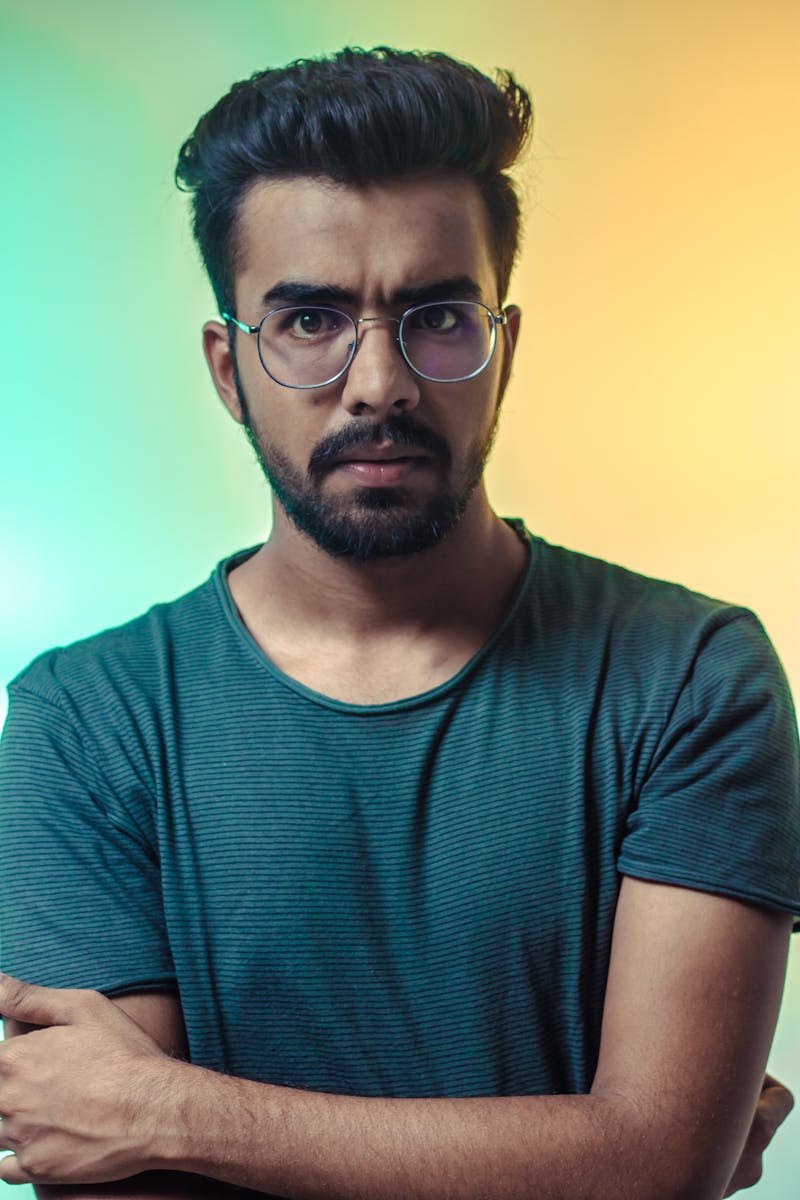
A neutral expression with no smile is mandatory for government IDs.
A Special Note for Overseas Pakistanis
If you are applying for NICOP from the UK, USA, or Dubai, please stop scanning your passport photos!
I see this mistake all the time. People go to a photo booth, get a printed photo, come home, scan it on their printer, and upload it. It will be rejected 100% of the time. Scanned photos have a texture made of tiny dots of ink that confuses facial recognition software. Plus, US passport sizes are square, while NADRA needs a rectangle.
Take a fresh digital photo with your iPhone or Samsung. If your file is in HEIC format which is the iPhone default, do not worry. Our tool converts HEIC and PNG to JPG automatically. Just follow the NICOP Guide for specific details.
How to Use Our Free Tool Correctly
We built this website because we were tired of seeing people struggle with these basic requirements. It is designed to be privacy-focused. Your photos are processed on your phone or laptop browser locally. We never see them, and they are never uploaded to our server.
- Upload Your Photo Click the upload box at the top of this page and select your image.
- Crop the Image You will see an oval shape guide. Use the slider to zoom in until your chin touches the bottom of the oval and your forehead touches the top. Remember the Face Ratio rule we discussed.
- Edit Lighting If your photo is a bit dark, use the brightness slider. If it looks washed out, increase the contrast slightly to define your features better.
- Download Click the green button. You will get a perfectly sized 350x467 JPG file that is under 60KB.
What If I Get the Face Not Detected Error
This is the most common and annoying error. It usually means the computer cannot distinguish your face from the background or the image is too blurry.
The Fix Use our tool to increase the Contrast. This makes the edges of your face sharper against the background. If that fails, wipe your camera lens because it might be oily or smudged and retake the photo in brighter light. For a deep dive into fixing this specific error, read our troubleshooting article on Fixing Face Not Detected.
Using an online tool ensures exact pixel dimensions unlike manual cropping.
Wrapping It Up
Applying for your CNIC online is actually a great convenience once you get past the photo hurdle. It saves you time, fuel, and the headache of dealing with chaotic queues at the office. By following the rules of lighting, background, and dimensions, you can get your application approved on the very first try.
So grab that white sheet, find a sunny window, and take your shot. Use our tool to handle the technical cropping and resizing for you. You have got this. Good luck with your application!